
Windows is brilliant… right up until it decides it isn’t. One minute you’re gaming, studying, or doing the BAS, and the next you’re staring at a frozen screen like it’s judging your life choices.
If you’re in Lithgow, Wallerawang, Portland, Katoomba, Bathurst, Orange or Dubbo, this guide covers the 10 most common Windows problems we see in-store, what causes them, and what you can try first. And if you’d rather not wrestle with it (fair), we’ll sort it out at Lithgeek Custom Gaming Computers, 85 Main Street Lithgow.
1) Windows Running Slow (Even Though It Used to Be Fast)
Common symptoms: Slow boot, apps lagging, spinning circle, fans constantly loud.
Common causes: Too many startup programs, failing hard drive/SSD, overheating, malware, Windows updates stuck in the background, or simply not enough RAM for today’s software.
Quick things to try:
- Restart (yes, really—Windows loves a clean reboot).
- Open Task Manager → Startup and disable obvious junk.
- Make sure you’ve got at least 15–20% free storage on your C: drive.
When to bring it in: If it’s still slow, it might be a dying drive or heat issue—and those get worse quickly if ignored.
Local fix: We can diagnose the bottleneck and recommend upgrades that actually make sense (SSD/RAM/clean-out), not just “buy a new PC”.
2) Computer Won’t Turn On (Or Turns On, Then Turns Off)
Common symptoms: No lights, no fans, or it powers up then shuts down.
Common causes: Power supply failure, loose power cable, dead battery (laptops), faulty RAM, motherboard issues.
Quick things to try:
- Try a different power point and cable.
- Unplug everything USB (sometimes a bad device blocks boot).
- On laptops, try powering on with charger connected, battery removed if removable.
When to bring it in: If you smell burning, hear clicking, or it’s repeatedly power-cycling—stop and get it checked.
3) Blue Screen (BSOD) or Random Crashes
Common symptoms: Blue screen, forced restart, error codes, crashes while gaming.
Common causes: Faulty RAM, driver issues, overheating, failing SSD/HDD, Windows corruption.
Quick things to try:
- Note what you were doing when it crashed (game? printer? update?).
- Check if it’s happening after a new driver or Windows update.
- If it crashes while gaming, overheating is a usual suspect.
When to bring it in: If it’s recurring, the faster you test it, the less chance of data loss.
4) Windows Updates Failing or Stuck “Working on Updates…”
Common symptoms: Update errors, endless reboot loop, stuck at a percentage for hours.
Common causes: Corrupted update cache, low disk space, driver conflicts, interrupted downloads.
Quick things to try:
- Leave it for up to an hour if it’s still moving occasionally.
- Ensure you have free space (updates can need 10–20GB).
- Don’t force power-off repeatedly (that can corrupt Windows further).
When to bring it in: If it loops, fails repeatedly, or won’t boot after updates—we can repair Windows without “nuking everything” where possible.
5) Wi-Fi Keeps Dropping Out or Is Super Slow
Common symptoms: Disconnects, “No internet”, slow downloads, lag spikes.
Common causes: Router issues, Windows network drivers, power saving settings, interference, old Wi-Fi adapter.
Quick things to try:
- Restart the router and the PC.
- Forget and reconnect to the network.
- Try a speed test on your phone near the PC—if the phone is fast and the PC isn’t, it’s likely the computer.
When to bring it in: If it only happens on the PC, we can check drivers, settings, and hardware—and recommend a better Wi-Fi solution (especially for older desktops).
6) No Sound (Or Microphone Not Working)
Common symptoms: No audio, headset not detected, mic dead in Discord/Zoom.
Common causes: Wrong audio device selected, driver issues, Windows privacy settings, damaged ports or headset.
Quick things to try:
- Right-click the speaker icon → choose correct output device.
- Check Settings → System → Sound and test output/input.
- For microphones: Settings → Privacy → Microphone (allow access).
When to bring it in: If ports are damaged or drivers are corrupted, we can fix it without guesswork.
7) Storage Full (Even Though You “Don’t Have Much on It”)
Common symptoms: “Low disk space”, can’t update, apps crash, slow performance.
Common causes: Windows temp files, updates, OneDrive syncing, huge hidden folders, years of downloads.
Quick things to try:
- Settings → System → Storage and run Storage Sense.
- Empty the recycle bin (it’s not a suggestion, it’s a lifestyle).
- Move big files off the C: drive.
When to bring it in: If you need help finding what’s eating space, or you suspect the drive is failing, we can check health and tidy safely.
8) Windows Won’t Boot (Stuck on Logo / “Preparing Automatic Repair”)
Common symptoms: Spinning dots forever, automatic repair loop, black screen.
Common causes: Corrupted Windows files, drive failure, update interruption, malware.
Quick things to try:
- Disconnect external drives/USB devices and reboot.
- If it started after an update, don’t keep forcing shutdown repeatedly.
When to bring it in: Boot issues can go from “annoying” to “data gone” if a failing drive is involved. We can often recover data and repair Windows.
9) Pop-Ups, Browser Hijacks, and “Is This a Virus?”
Common symptoms: Constant pop-ups, weird toolbars, homepage changed, fake “you are infected” alerts.
Common causes: Adware, malicious extensions, dodgy downloads, “free” installers with extra surprises.
Quick things to try:
- Don’t click the pop-up (even the “X” sometimes triggers installs).
- Check browser extensions and remove anything suspicious.
- If you’ve entered banking details, change passwords on a clean device.
When to bring it in: If you’re unsure, it’s worth getting it checked—especially if it’s a family computer used for banking, school accounts, or work logins.
10) Printer Problems (Yes… We Know)
Common symptoms: “Offline”, won’t print, prints gibberish, constant driver errors.
Common causes: Windows updates, network printer discovery issues, driver conflicts, spooler problems.
Quick things to try:
- Power cycle printer and PC.
- Remove and re-add the printer.
- Try printing from another device to confirm if it’s the printer or the PC.
Friendly reality check: We don’t service printers—not because we don’t care, but because printer support is a black hole of sadness and we’d rather be honest than take your money for frustration.
What we can do: Fix the Windows side (drivers, spooler, network setup) so your PC behaves properly.
When It’s Time to Bring It In
If you’re dealing with any of these, a quick professional diagnosis can save hours of YouTube rabbit holes—and often prevents bigger damage (especially with failing drives).
What you get at Lithgeek
- Clear explanations (no tech-speak, no judgement)
- Honest advice: “We want to take your money, but for the right reasons.”
- Repairs backed by a 90-day warranty on work performed (where applicable)
- A local team that actually answers questions and remembers your name
📍 Lithgeek Custom Gaming Computers
85 Main Street, Lithgow
🌐 www.lithgeek.com | www.macmason.tech
Bonus: Want a PC That Doesn’t Fight You?
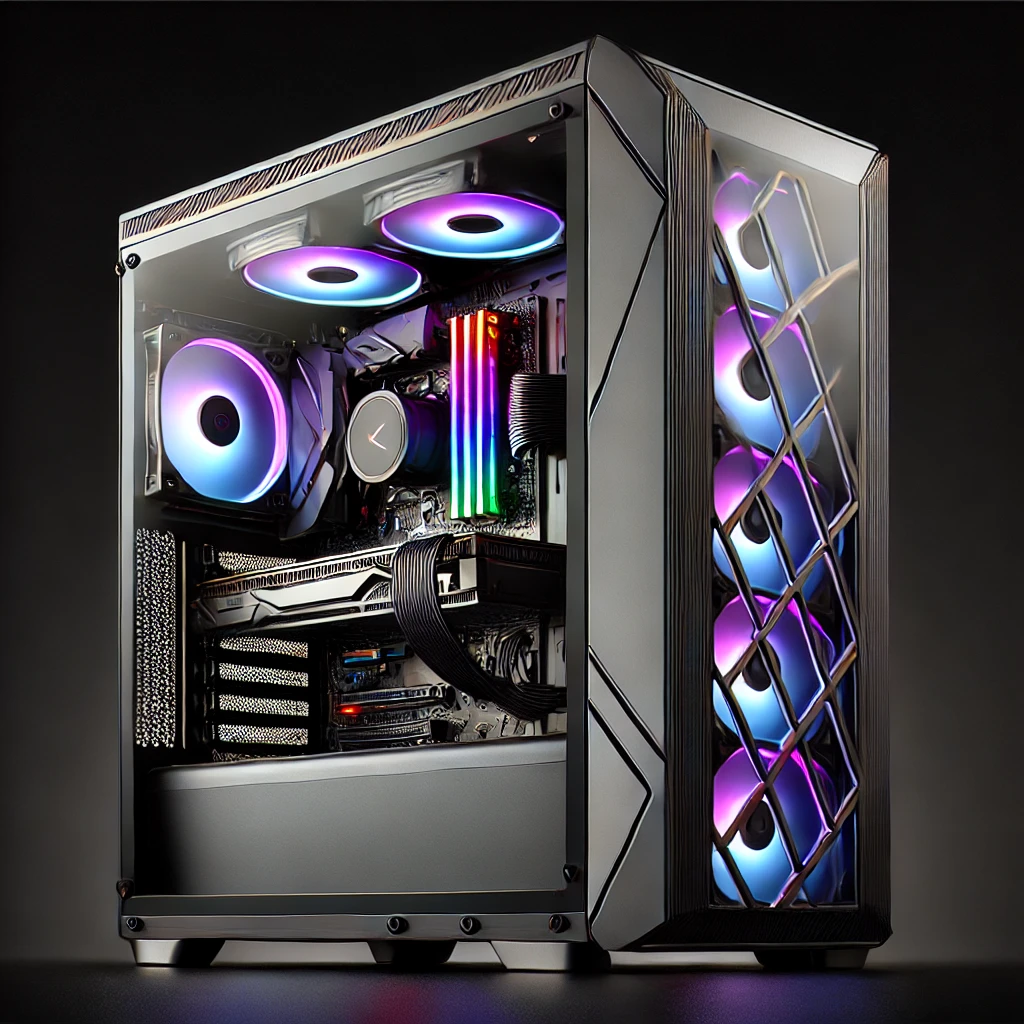
If your current computer is constantly having “one of those days”, it may be time for a proper upgrade—especially if you’re gaming. We build custom PCs (including case mods and specialised lighting) and we’ll tailor it to your needs and budget, even if parts need to be ordered in. Good builds are like a craft project: worth doing properly.
Call to Action
If you’re stuck, bring your Windows PC in and we’ll help you get back to normal—whether that’s work, Netflix, or a smooth 144FPS gaming session.
Pop in to 85 Main Street Lithgow, or reach out via lithgeek.com to book a repair check-in.10 Common Windows Problems (and How to Fix Them) — Lithgow Local Help
Windows is brilliant… right up until it decides it isn’t. One minute you’re gaming, studying, or doing the BAS, and the next you’re staring at a frozen screen like it’s judging your life choices.
If you’re in Lithgow, Wallerawang, Portland, Katoomba, Bathurst, Orange or Dubbo, this guide covers the 10 most common Windows problems we see in-store, what causes them, and what you can try first. And if you’d rather not wrestle with it (fair), we’ll sort it out at Lithgeek Custom Gaming Computers, 85 Main Street Lithgow.
1) Windows Running Slow (Even Though It Used to Be Fast)
Common symptoms: Slow boot, apps lagging, spinning circle, fans constantly loud.
Common causes: Too many startup programs, failing hard drive/SSD, overheating, malware, Windows updates stuck in the background, or simply not enough RAM for today’s software.
Quick things to try:
- Restart (yes, really—Windows loves a clean reboot).
- Open Task Manager → Startup and disable obvious junk.
- Make sure you’ve got at least 15–20% free storage on your C: drive.
When to bring it in: If it’s still slow, it might be a dying drive or heat issue—and those get worse quickly if ignored.
Local fix: We can diagnose the bottleneck and recommend upgrades that actually make sense (SSD/RAM/clean-out), not just “buy a new PC”.
2) Computer Won’t Turn On (Or Turns On, Then Turns Off)
Common symptoms: No lights, no fans, or it powers up then shuts down.
Common causes: Power supply failure, loose power cable, dead battery (laptops), faulty RAM, motherboard issues.
Quick things to try:
- Try a different power point and cable.
- Unplug everything USB (sometimes a bad device blocks boot).
- On laptops, try powering on with charger connected, battery removed if removable.
When to bring it in: If you smell burning, hear clicking, or it’s repeatedly power-cycling—stop and get it checked.

3) Blue Screen (BSOD) or Random Crashes
Common symptoms: Blue screen, forced restart, error codes, crashes while gaming.
Common causes: Faulty RAM, driver issues, overheating, failing SSD/HDD, Windows corruption.
Quick things to try:
- Note what you were doing when it crashed (game? printer? update?).
- Check if it’s happening after a new driver or Windows update.
- If it crashes while gaming, overheating is a usual suspect.
When to bring it in: If it’s recurring, the faster you test it, the less chance of data loss.
4) Windows Updates Failing or Stuck “Working on Updates…”
Common symptoms: Update errors, endless reboot loop, stuck at a percentage for hours.
Common causes: Corrupted update cache, low disk space, driver conflicts, interrupted downloads.
Quick things to try:
- Leave it for up to an hour if it’s still moving occasionally.
- Ensure you have free space (updates can need 10–20GB).
- Don’t force power-off repeatedly (that can corrupt Windows further).
When to bring it in: If it loops, fails repeatedly, or won’t boot after updates—we can repair Windows without “nuking everything” where possible.
5) Wi-Fi Keeps Dropping Out or Is Super Slow
Common symptoms: Disconnects, “No internet”, slow downloads, lag spikes.
Common causes: Router issues, Windows network drivers, power saving settings, interference, old Wi-Fi adapter.
Quick things to try:
- Restart the router and the PC.
- Forget and reconnect to the network.
- Try a speed test on your phone near the PC—if the phone is fast and the PC isn’t, it’s likely the computer.
When to bring it in: If it only happens on the PC, we can check drivers, settings, and hardware—and recommend a better Wi-Fi solution (especially for older desktops).
6) No Sound (Or Microphone Not Working)
Common symptoms: No audio, headset not detected, mic dead in Discord/Zoom.
Common causes: Wrong audio device selected, driver issues, Windows privacy settings, damaged ports or headset.
Quick things to try:
- Right-click the speaker icon → choose correct output device.
- Check Settings → System → Sound and test output/input.
- For microphones: Settings → Privacy → Microphone (allow access).
When to bring it in: If ports are damaged or drivers are corrupted, we can fix it without guesswork.
7) Storage Full (Even Though You “Don’t Have Much on It”)
Common symptoms: “Low disk space”, can’t update, apps crash, slow performance.
Common causes: Windows temp files, updates, OneDrive syncing, huge hidden folders, years of downloads.
Quick things to try:
- Settings → System → Storage and run Storage Sense.
- Empty the recycle bin (it’s not a suggestion, it’s a lifestyle).
- Move big files off the C: drive.
When to bring it in: If you need help finding what’s eating space, or you suspect the drive is failing, we can check health and tidy safely.
8) Windows Won’t Boot (Stuck on Logo / “Preparing Automatic Repair”)
Common symptoms: Spinning dots forever, automatic repair loop, black screen.
Common causes: Corrupted Windows files, drive failure, update interruption, malware.
Quick things to try:
- Disconnect external drives/USB devices and reboot.
- If it started after an update, don’t keep forcing shutdown repeatedly.
When to bring it in: Boot issues can go from “annoying” to “data gone” if a failing drive is involved. We can often recover data and repair Windows.
9) Pop-Ups, Browser Hijacks, and “Is This a Virus?”
https://sales.lithgeek.comCommon symptoms: Constant pop-ups, weird toolbars, homepage changed, fake “you are infected” alerts.
Common causes: Adware, malicious extensions, dodgy downloads, “free” installers with extra surprises.
Quick things to try:
- Don’t click the pop-up (even the “X” sometimes triggers installs).
- Check browser extensions and remove anything suspicious.
- If you’ve entered banking details, change passwords on a clean device.
When to bring it in: If you’re unsure, it’s worth getting it checked—especially if it’s a family computer used for banking, school accounts, or work logins.
10) Printer Problems (Yes… We Know)
Common symptoms: “Offline”, won’t print, prints gibberish, constant driver errors.
Common causes: Windows updates, network printer discovery issues, driver conflicts, spooler problems.
Quick things to try:
- Power cycle printer and PC.
- Remove and re-add the printer.
- Try printing from another device to confirm if it’s the printer or the PC.
Friendly reality check: We don’t service printers—not because we don’t care, but because printer support is a black hole of sadness and we’d rather be honest than take your money for frustration.
What we can do: Fix the Windows side (drivers, spooler, network setup) so your PC behaves properly.
When It’s Time to Bring It with your windows problems
If you’re dealing with any of these, a quick professional diagnosis can save hours of YouTube rabbit holes—and often prevents bigger damage (especially with failing drives).
What you get at Lithgeek
- Clear explanations (no tech-speak, no judgement)
- Honest advice: “We want to take your money, but for the right reasons.”
- Repairs backed by a 90-day warranty on work performed (where applicable)
- A local team that actually answers questions and remembers your name
📍 Lithgeek Custom Gaming Computers
85 Main Street, Lithgow
🌐 www.lithgeek.com | www.macmason.tech
Bonus: Want a PC That Doesn’t Fight You?
If your current computer is constantly having “one of those days”, it may be time for a proper upgrade—especially if you’re gaming. We build custom PCs (including case mods and specialised lighting) and we’ll tailor it to your needs and budget, even if parts need to be ordered in. Good builds are like a craft project: worth doing properly.
If you’re stuck, bring your Windows PC in and we’ll help you get back to normal—whether that’s work, Netflix, or a smooth 144FPS gaming session.
Pop in to 85 Main Street Lithgow, or reach out via lithgeek.com to book a repair check-in.